| New in V1.90 is a string function processor that allows you to perform string, mathematical and logical operations on text fields or barcode contents.
The function evaluator provided in V1.90 and later of Producer is specifically designed for text string processing. All function arguments and results are text strings by their nature, although some functions interpret strings as numbers and some return results are numbers represented as strings.
Functions can be embedded anywhere within a text string, and upon evaluation, will be replaced by the result of the function computation. Any number of functions can be included in a single text field, and functions may be nested to any level.
Each function begins with a special sequence that identifies the start of a function. This sequence is the combination of a colon and an equal sign ":=". Immediately following this start sequence is the name of the function. All function names are followed by an argument list with zero or more arguments enclosed in parentheses.
For example, the "concat" function simply returns its argument list combined (or concatenated) as a single string as shown below (note that in all examples, double quotes enclose the strings for clarity only and are not required):
| Input Text |
Result |
"ABC :=concat(Hello,World) DEF"
|
"ABC HelloWorld DEF"
|
"ABC :=concat(Hello, World) DEF"
|
"ABC Hello World DEF"
|
"ABC :=concat(Hello,concat( World)) DEF"
|
"ABC Hello World DEF"
|
"ABC :=concat(Hello,( World)) DEF"
|
"ABC Hello World DEF"
|
Notice that in all examples, the function is surrounded by text strings "ABC" and "DEF" that are copied directly to the output. In the first example, the arguments to the concat function are placed directly next to each other with no intervening space. This is because the second argument immediately follows the comma, which separates the
arguments. The second example corrects this by placing a comma before the word "World".
The third example above produces the same same result as the second, but is perhaps more obvious since the space character is part of the argument to the second, nested concat function.
The fourth example also produces the desired result by using the anonymous function - simply leave off the function name - which is the same as the concat function.
|
| Function Reference
The following functions are supported by Producer for both text and barcode fields:
String Functions
| Name |
Arguments |
Returns |
Example |
asc(ch)
Return the ASCII value for the character ch |
ch - string (only the first character is used) |
integer |
":=asc(A)"
returns "65" |
char(value)
Return the character whose ASCII value is <value> |
value - integer |
string |
":=char(65)"
returns "A" |
concat(arg1,arg2,...argN)
Return a string that is the concatenation of all arguments |
one or more text strings |
string |
":=concat(ABC,123)"
returns "ABC123" |
dformat(value,width,precision)
Format the decimal value as a string |
value - decimal value
width - minimum number of characters for resulting text - padded as needed
precision - number of places after the decimal point |
string |
":=dformat(1.2345,1,2)"
returns "1.23"
":=dformat(10.0,10,3)"
returns " 10.000" |
empty()
Return an empty string |
none |
string |
":=empty()"
returns "" |
iformat(value,width,precision)
Format the integer value as a string |
value - integer value
width - minimum number of characters for resulting text - padded as needed - optional
precision - minimum number of digits - optional |
string |
":=iformat(10,3)"
returns "10"
":=iformat(10,3,3)"
returns "010" |
isempty(arg1,...argN)
Return True "1" if all arguments are empty strings, else returns False "0" |
one or more text strings |
logical "0" or "1" |
":=isempty()"
returns "1"
":=isempty(A)"
returns "0"
":=isempty(empty())"
returns "1" |
left(text,count)
Return the leftmost <count> characters from <text> |
text - a text string
count - the number of characters |
string |
":=left(InfoSight, 4)"
returns "Info" |
lower(text)
Return text converted to all lower case |
text - a text string |
string |
":=lower(InfoSight)"
returns "infosight" |
proper(text)
Return text converted to proper case |
text - a text string |
string |
":=proper(hello world)"
returns "Hello World" |
replace(text,old,new)
Replace all occurrences of <old> with <new> in <text> |
text - a text string
old - the text to be replaced
new - the replacement text |
string |
":=replace(ABCD,BC,X)"
returns "AXD" |
rept(text,count)
Return a string that is <string> repeated <count> times |
text - a text string
count - number of repetitions |
string |
":=rept(AB,4)"
returns "ABABABAB" |
right(text,count)
Return the rightmost <count> characters from <text> |
text - a text string
count - the number of characters |
string |
":=right(InfoSight, 5)"
returns "Sight" |
streq(text1,text2,...textN)
Return True "1" if all text string arguments are equal |
one or more text strings |
logical |
":=streq(AB,CD)"
returns "0"
":=streq(AB,AB,AB)"
returns "1" |
strgt(text1,text2)
Returns True "1" if <text1> is greater than <text2> |
text1 - a text string
text2 - a text string |
logical |
":=strgt(C,B)"
returns "1"
":=strgt(B,B)"
returns "0" |
strlen(text)
Returns the length (number of characters) of <text> |
text - a text string |
integer |
":=strlen(ABC)"
returns "3" |
strlt(text1, text2)
Returns True "1" if <text1> is less than <text2> |
text1 - a text string
text2 - a text string |
logical |
":=strlt(A,B)"
returns "1"
":=strlt(B,B)"
returns "0" |
strpos(text1, text2)
Returns the position within <text1> of the string <text2> where 1 is the first character.
If the <text2> is not found in <text1> returns "0". |
text1 - the text string to search
text2 - the text string to find |
integer |
":=strpos(InfoSight,Si)"
returns "5" |
substr(text,start,length)
Returns a sub-string of <text> starting at position <start> where 1 is the first character, containing at most <length> characters |
text - a text string
start - integer starting character position
length - number of characters |
string |
":=substr(InfoSight,3,2)"
returns "fo" |
trim(text)
Remove leading and trailing whitespace from <text> |
text - a text string |
string |
":=trim( Hello )"
returns "Hello" |
Mathematical Functions
| Name |
Arguments |
Returns |
Example |
abs(number)
Returns the absolute value of <number> |
number - integer or decimal |
decimal |
":=abs(5)"
returns "5"
":=abs(-5)"
returns "5" |
avg(num1,num2,...numN)
Returns the average of all argument |
one or more numbers, integer or decimal |
decimal |
":=avg(25.0,33.5,17,44.1)"
returns "29.9" |
ceil(number)
Returns the smallest integer not less than <number> |
number - decimal number |
integer |
":=ceil(210.67)"
returns "211"
":=ceil(-4.5)"
returns "-4" |
div(num1,num2)
Returns the quotient from the division of <num1> by <num2> |
num1 - integer or decimal number
num2 - integer or decimal number |
decimal |
":=div(10,5)"
returns "2" |
eq(num1,num2,prec)
Returns True "1" if <num1> is equal to <num2> within precision <prec> |
num1 - decimal number
num2 - decimal number
prec - decimal precision value - optional default = 0.000001 |
logical |
":=eq(5,5.00001)"
returns "0"
":=eq(5,5.0000001)"
returns "1" |
floor(number)
Returns the largest integer not greater than <number> |
number - a decimal number |
integer |
":=floor(169.65)"
returns "169"
":=floor(-14.32)"
returns "-15" |
gt(num1,num2)
Returns True "1" if <num1> is numerically greater than <num2> |
num1 - integer or decimal
num2 - integer or decimal |
logical |
":=gt(1.2,1.09)"
returns "1"
":=gt(-5,-3)"
returns "0" |
lt(num1,num2)
Returns True "1" if <num1> is numerically less than <num2> |
num1 - integer or decimal
num2 - integer or decimal |
logical |
":=gt(1.2,1.09)"
returns "0"
":=gt(-5,-3)"
returns "1" |
max(num1,num2,...numN)
Return the maximum number in the list of arguments |
one or more numbers |
decimal |
":=max(10,14,19,6,4,2)"
returns "19"
":=max(10,14,14.01,6,4,2)"
returns "14.01" |
min(num1,num2,...numN)
Return the minimum number in the list of arguments |
one or more numbers |
decimal |
":=min(10,14.9,14.9001,4,2)"
returns "2"
":=min(10,14,-19,6,4,2)"
returns "-19" |
mod(num1,num2)
Returns the integer remainder after dividing <num1> by <num2> |
num1 - integer number
num2 - integer number |
integer |
":=mod(10,7)"
returns "3" |
mult(num1,num2,...numN)
Returns the product of all arguments |
one or more numbers |
decimal |
":=mult(10,5)"
returns "50" |
pow(number,exp)
Returns <number> raised to the <exp> power. |
number - an integer or decimal
exp - the exponent |
decimal |
":=pow(4,2)"
returns "16"
":=pow(2.5,2)"
returns "6.25" |
sqrt(number)
Returns the square root of <number> |
number - an integer or decimal |
decimal |
":=sqrt(25)"
returns "5" |
subtract(num1, num2)
Returns the difference <num1> minus <num2> |
num1 - an integer or decimal
num2 - an integer or decimal |
decimal |
":=subtract(10,3)"
returns "7" |
sum<num1,num2,...numN)
Returns the numerical summation of all arguments |
one or more numbers |
decimal |
":=sum(1,2,3,4,5)"
returns "15" |
Logical Functions
| Name |
Arguments |
Returns |
Example |
and(arg1,arg2,...argN)
Returns True "1" only if all arguments are non-zero |
one or more numeric or logical |
logical |
":=and(1,1,1,0)"
returns "0"
":=and(1,1,1,1)"
returns "1" |
false()
Returns "0" |
none |
logical |
":=false()"
returns "0" |
if(test,true,false)
Returns the argument <true> if the value of <test> is non-zero, else returns the argument <false> |
test - numeric or logical test
true - argument to return if <test> is non-zero
false - argument to return if <test> is zero |
any |
":=if(0,True,False)"
returns "False"
":=if(gt(5.0,4.9),True,False)"
returns "True" |
not(arg)
Returns the logical negation of <arg>. If <arg> is zero, returns "1", else "0" |
arg - numeric or logical |
logical |
":=not(true())"
returns "0" |
or(arg1,arg2,...argN)
Returns True "1" if any arguments are non-zero |
one or more numeric or logical |
logical |
":=or(0,0,0,1)"
returns "1"
":=or(0,0,0,0)"
returns "0" |
true()
Returns "1" |
none |
logical |
":=true()"
returns "1" |
Miscellaneous Functions
| Name |
Arguments |
Results |
Example |
gs1cksum(text)
Return <text> as a GS1 barcode symbology AI (01) string including the checksum |
text - 13 digits representing an AI(01) identifier |
string |
":=gs1cksum(1801437557290)"
returns "18014375572900" |
ft_to_m(number)
Return <number> converted from feet to meters |
number - an integer or decimal |
decimal |
":=ft_to_m(5.0)"
returns "1.524" |
m_to_ft(number)
Returns <number> converted from meters to feet |
number - an integer or decimal |
decimal |
":=m_to_ft(12.0)"
returns "39.3700787401575" |
lb_to_kg(number)
Returns <number> converted from pounds to kilograms |
number - an integer or decimal |
decimal |
":=lb_to_kg(3.0)"
returns "1.36077718520971" |
kg_to_lb(number)
Returns <number> converted from kilograms to pounds |
number - an integer or decimal |
decimal |
":=kg_to_lb(5.0)"
returns "11.0231125" |
|


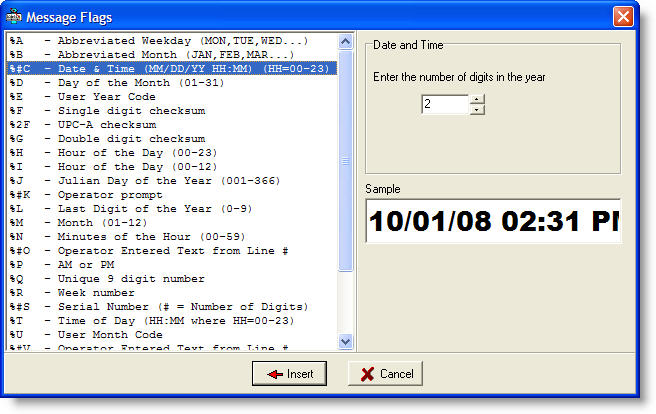
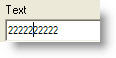 Text
field before using the Insert feature of the Flag Help form. Note
the position of the cursor within the text. This is where
the flag will be placed.
Text
field before using the Insert feature of the Flag Help form. Note
the position of the cursor within the text. This is where
the flag will be placed.
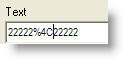 Text
field after inserting the %4C flag from the Flag Help Form
Text
field after inserting the %4C flag from the Flag Help Form